Help centre
How can we help?
Fix your footage, install your files or find an answer. A real person replies Mon to Fri, usually within 2 hours.
SC 01 · Fix my footage
LUT looks wrong? It's almost never the LUT.
Tell us what you shot on and what you edit in. We'll give you the exact order to do things in.
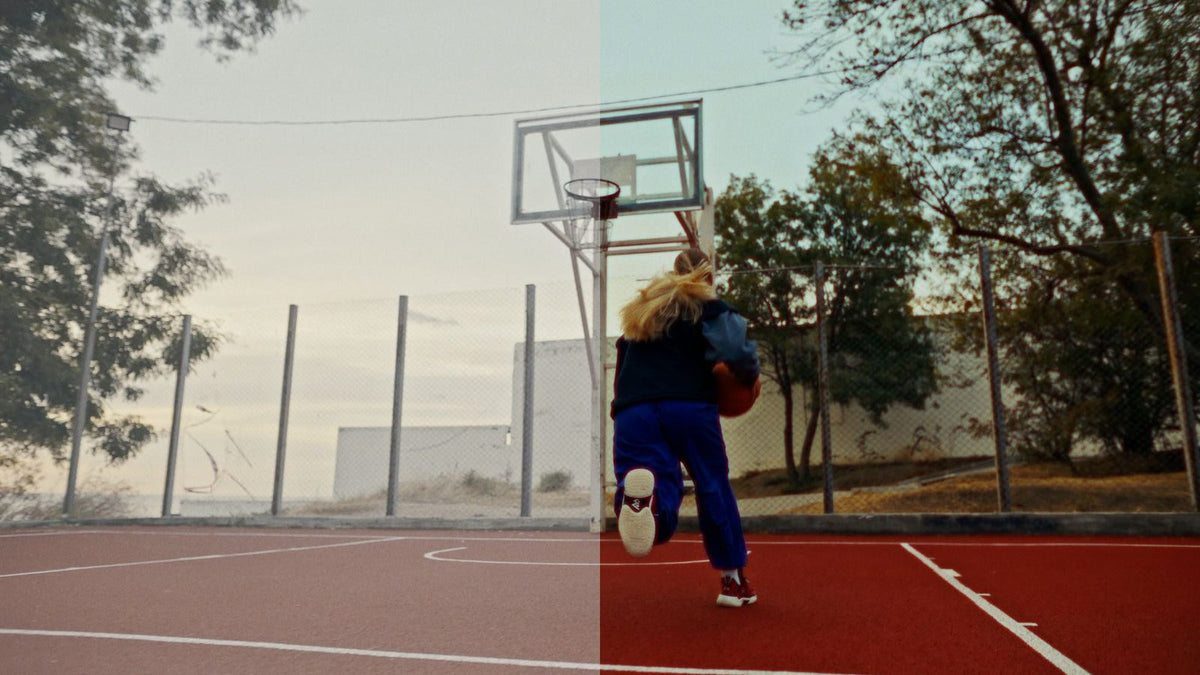
Watch · 3 min
From download to first grade.
Install your LUTs and apply them in your editor, start to finish.
 2:49
2:49SC 02 · Install guides
Step by step, in your editor.
- 01Open the Lumetri Color panel (Window › Lumetri Color).
- 02Basic Correction › Input LUT › Browse, and pick the conversion LUT for your camera.
- 03Fix exposure and white balance in Basic Correction.
- 04Creative › Look › Browse, and pick your Aprture grade.
- 05Drop Creative › Intensity to around 60 to 80%.
Menu names can shift between app versions. The PDF and video in your download always match the current version.
SC 03 · My order
Find your downloads.
SC 04 · All answers
Everything else.
14 answersGetting startedHow do I install LUTs?
Drag, drop, done. Every pack includes a PDF setup guide and a video tutorial. Use the editor guides above for step by step.
Getting startedMy footage looks wrong with a LUT. Why?
Almost always log footage without a conversion LUT, or exposure and white balance that need fixing first. Use the troubleshooter above, or read the 7 most common mistakes.
Getting startedIs this beginner friendly?
Completely. One-click looks plus short tutorials. No colour-grading degree required.
Getting startedWhich colour space should I use?
Our LUTs are designed for Rec.709. If you shot in log, apply a log-to-Rec.709 conversion LUT first. We give these away free.
Getting startedCan I use these on mobile?
Yes, in LumaFusion: save the .cube files to the Files app and import them. CapCut’s mobile app doesn’t support importing custom LUTs yet, so use CapCut on desktop (Mac or PC). Presets work in Lightroom Mobile.
DownloadsHow fast is delivery?
Instant. A download link on the checkout page, plus a backup by email.
DownloadsI lost my files. Can I download them again?
Yes. Use the link in your order email or log in to your account. If anything has expired, email info@aprture.com with your order number and we will resend it.
DownloadsWhat formats are the files?
LUTs are .cube. Overlays are .mov/.mp4 (ProRes or H.264). SFX are .wav. Lightroom presets are .xmp.
LicensingCan I use these for client work?
Personal use is included. For client, brand or monetised work, add the one-time £12 commercial licence at checkout. No per-project fees.
LicensingCan I share or resell the files?
No. Use them in your own projects, but you cannot resell, share or redistribute the raw files.
PaymentsWhat payment methods do you accept?
Visa, Mastercard, American Express, Discover, PayPal, Apple Pay and Google Pay.
PaymentsCan I pay in instalments?
Yes. Choose PayPal at checkout, then tick “Pay in 4” on the PayPal confirmation page to split your total into four interest-free payments (availability varies by country).
PaymentsDo you store my payment details?
No. Aprture never stores card or bank details. Payments are processed securely by Stripe, PayPal and Apple Pay.
PaymentsCan I get a refund?
Because these are digital files, all sales are final. If anything goes wrong with your download or order, email info@aprture.com and we will put it right.