How to add a LUT in CapCut (desktop and mobile, and the bit nobody tells you)
CapCut is where a huge chunk of creators actually edit now, and fair enough. It's fast, it's free, and it does most of what you need. But the LUT side of it is a bit odd, and the guides floating around online tend to skip over the awkward part.
So here's the honest version. How to get a LUT into CapCut, how to apply it properly, and what to do if you're on your phone, because that's where it gets complicated.
The short answer
- CapCut desktop (Mac and Windows): yes, you can import your own .cube or .3dl LUTs. Takes about a minute. Steps below.
- CapCut mobile and the web version: no. You can only use CapCut's built-in filters. There's no way to load a custom LUT file. I've seen a dozen guides that say otherwise. They're wrong, or they're describing the built-in library and calling it LUTs.
If you're on mobile and were hoping to use a LUT pack you've bought, skip to the mobile section further down. There is a decent way round it.
How to import a LUT in CapCut desktop
You'll need the LUT files unzipped and sitting somewhere you can find them. If you've bought a pack from us, that's the folder with the .cube files in it.
- Open your project and drop your clip on the timeline.
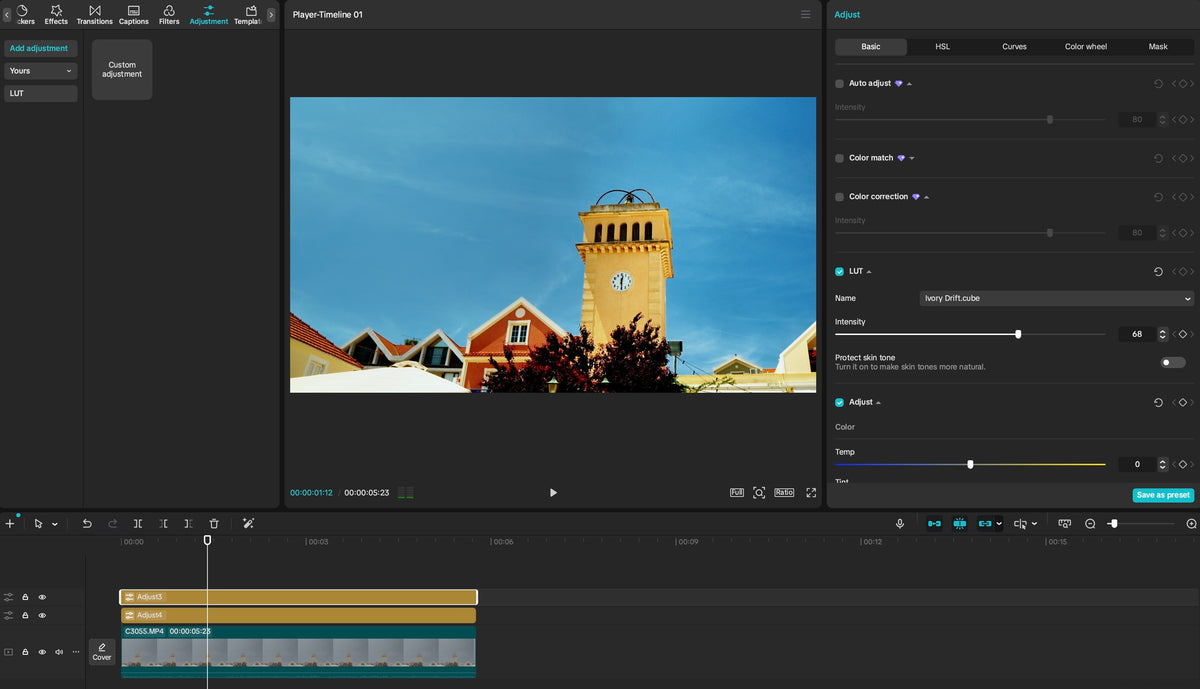
- Click the clip, then look at the panel on the right. Click Adjust.
- Inside Adjust you'll see a LUT tab. Click it.
- Hit Import and browse to your LUT folder. You can select all the .cube files in one go and bring them in together.
- They'll now appear as thumbnails in the LUT panel. Hover over one to preview it on your clip.

Once they're imported they stay in CapCut. You won't need to do this again for future projects.
Two ways to apply it (and which one to use)
This is where most guides stop, but it's actually the important bit.
Directly on the clip. Double-click the LUT thumbnail and it's applied to whichever clip you've got selected. Fine for a single clip. A pain for forty.
As an adjustment layer. Hover over the thumbnail and click the small + icon in the bottom corner. CapCut creates an adjustment layer above your timeline with the LUT on it. Drag the right edge of that layer to stretch it across all your clips and they all get the same look at once.
 Use the adjustment layer for your creative look. It keeps the whole edit consistent and means you can swap the LUT for the entire video by changing one thing.
Dialing in the intensity
With the LUT selected, there's an Intensity slider in the same panel. CapCut caps it at 100%, which is unusual (Resolve and Premiere let you go higher), but honestly you'll rarely want more than 100 anyway.
If anything, most LUTs look better lower. Start at 100, then pull it back to somewhere between 60 and 85 and see if it feels more natural. A LUT at full strength on footage it wasn't designed for is the main reason people decide LUTs "look fake".
The mistake that makes every LUT look terrible
If your footage was shot in Log (Apple Log on an iPhone Pro, D-Log M on a DJI, Protune flat on a GoPro, S-Log on a Sony), do not put a creative LUT straight on it. You'll get crushed shadows and skin tones that look sunburnt.
Log footage needs a conversion LUT first to bring it back to normal. Then your creative LUT goes on top. In CapCut that means:
- Conversion LUT applied directly to the clip (double-click method), at 100% intensity
- Creative LUT on an adjustment layer above it
Doing it this way means if you've mixed cameras, each clip gets its own correct conversion while the adjustment layer keeps the look consistent across everything.
We give the conversion LUTs away free. If you're shooting Log on anything, grab the pack before you do anything else. → Free Conversion LUT Pack

If your footage wasn't shot in Log (most phone footage in standard mode, most mirrorless footage in a normal picture profile), you don't need this step. Straight to the creative LUT.
Check out our cinematic LUTs here.
What about CapCut on mobile?
Here's the bit the other guides dodge.
The mobile app has a Filters section and, in some versions, something labeled LUTs. These are CapCut's own presets. You cannot import a .cube file. There's no button for it, hidden or otherwise. If a guide tells you to "tap Adjust, then LUT, then Import", it's describing the desktop app with a screenshot of a phone.
Your options if you edit on your phone:
1. Edit on desktop, export, post from your phone. Not what you wanted to hear, but it's what most creators who care about color end up doing. CapCut projects can sync across desktop and mobile if you're signed into the same account, so you can do the grade on your laptop and the captions on your phone.
2. Use a phone editor that does support LUTs. LumaFusion (iOS and Android) and Blackmagic Camera (iOS and Android) both let you load .cube files directly. VN Video Editor does as well. You lose CapCut's templates and auto captions, but you get proper color.
3. Get close with CapCut's built-in filters. If you're staying in the mobile app, the built-in library isn't bad. Pick something in the "Film" or "Cinematic" group, drop the intensity to around 50, and add a touch of grain from Effects. It won't match a proper LUT pack but it's a long way from nothing.
Getting the most out of a LUT in CapCut
A few things that make more difference than the LUT itself:
- Fix exposure and white balance first. Under Adjust, sort out the basics before the LUT goes on. A LUT can't rescue a clip that's blue or two stops under.
- Add grain after the LUT. CapCut's grain is in the Effects tab. Keep it subtle. Or drop a film grain overlay clip on a layer above and set the blend mode to Overlay or Soft Light. → Cinematic Grain overlays
- Match your clips before you grade. If one clip's warmer than the rest, fix that clip individually first, then let the adjustment layer do the look. Otherwise you're chasing your tail.
- Check it on your phone. CapCut desktop previews look different to a phone screen. Export a short section and look at it where your audience will.
Quick questions
Which LUT format does CapCut accept? .cube and .3dl. Every Aprture pack ships as .cube, which is the standard format and works across CapCut, Premiere, Final Cut, Resolve and most others.
Do I need CapCut Pro to import LUTs? No. Importing custom LUTs is in the free desktop version. Some of the built-in effects are Pro-only, but that's a separate thing.
Can I add a LUT to a photo in CapCut? Yes, on desktop. Same process. Drop the image on the timeline and apply the LUT to it like a clip.
Why does the LUT look different in CapCut than in the preview video? Usually one of three things: the footage was shot in Log and hasn't been converted, the intensity is at 100 and the preview was shot at 70, or the exposure on your clip is off. Occasionally it's CapCut's color handling on HDR clips from an iPhone, in which case turn HDR off on the phone before your next shoot.
Can I use CapCut LUTs from other packs in Aprture packs and vice versa? A LUT is a LUT. Any .cube file works in any editor that supports .cube. There's no such thing as a CapCut-specific LUT, whatever the listing says.